
Guides
Last updated: October 10, 2026
Kin Flow is a visual canvas for a family tree. These guides cover the first things most people do: add people, connect relatives, keep photos and life events, and save the tree.
Start a tree
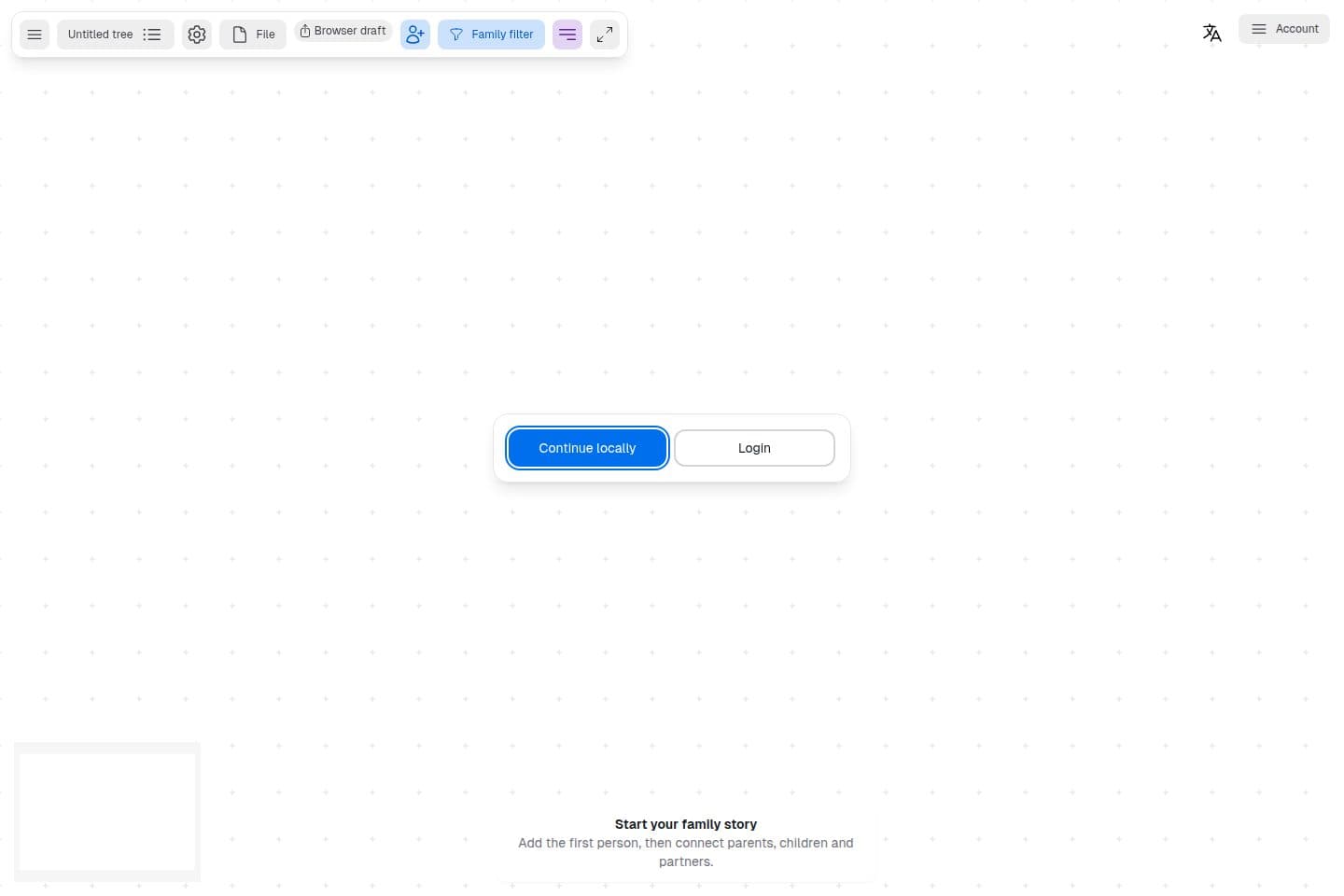
The canvas opens without an account. An empty tree is already there, and Kin Flow keeps it in this browser until you save it as a file.
Open Kin Flow. The canvas already holds a tree named Untitled tree. Choose Continue locally to work in this browser, or Login if you already have an account. Signing in later does not wipe the draft.
Add people
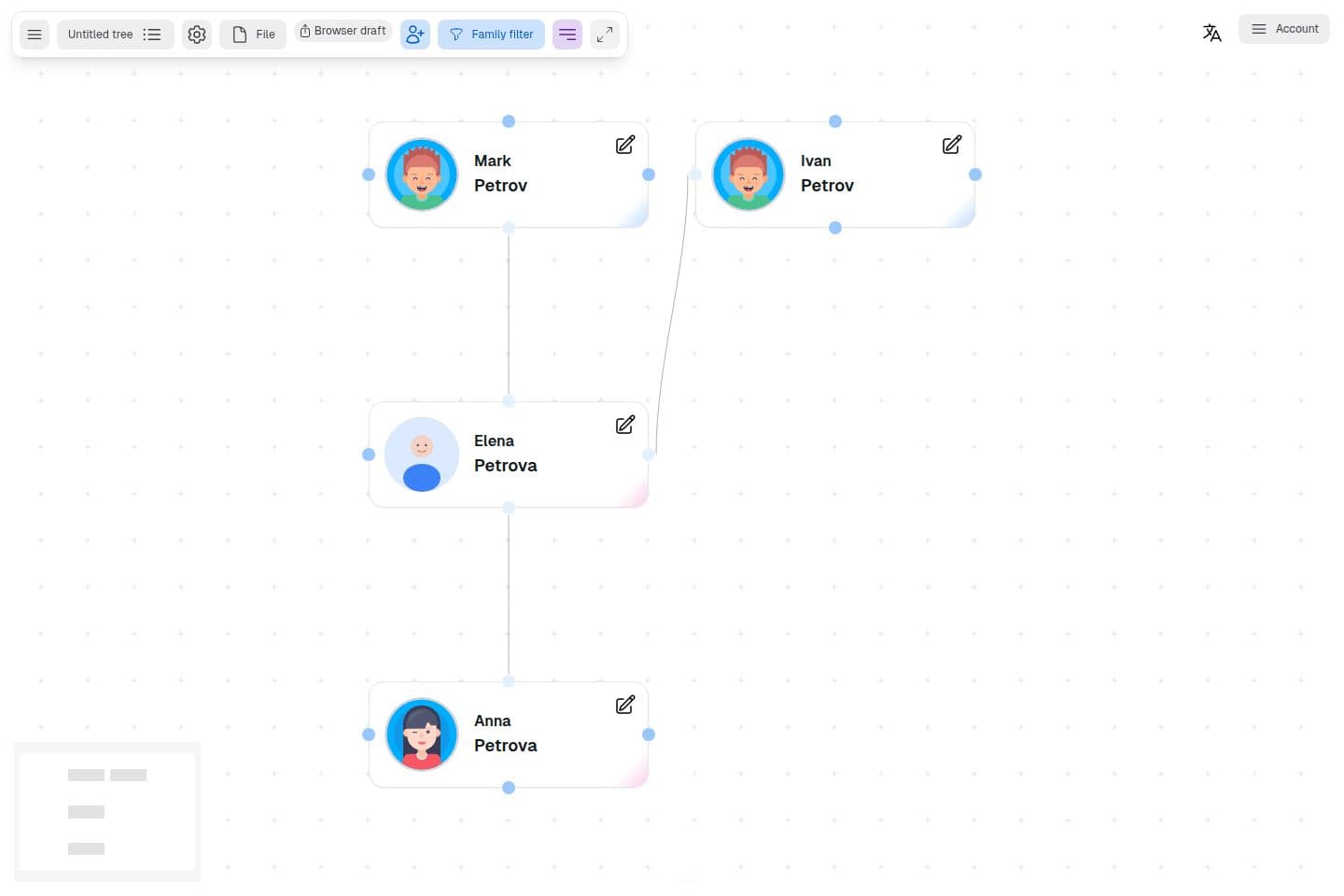
A person is a card. Add the first one from the toolbar, then grow the tree from the dots on a card.
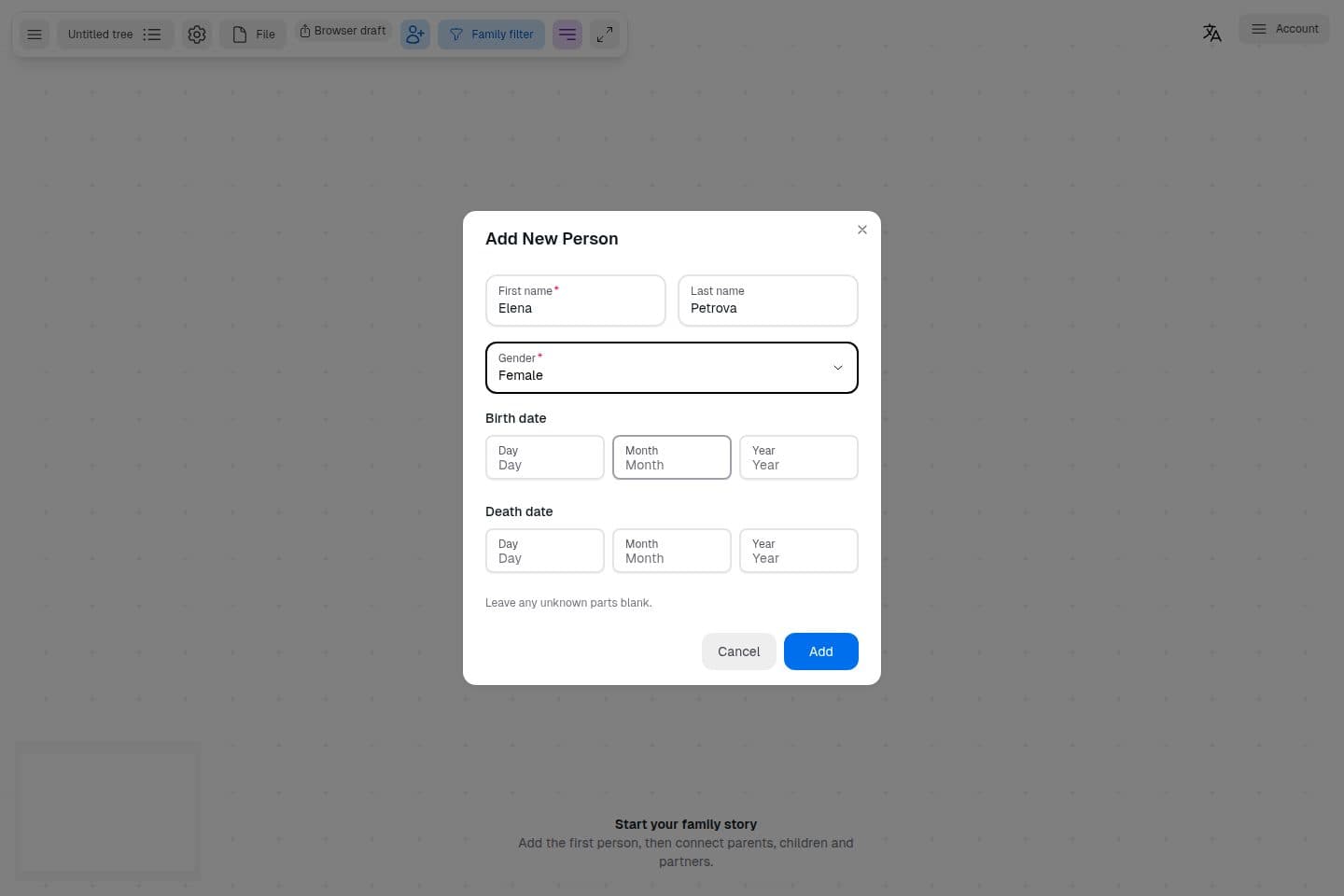
Click Add Person. A first name and a gender are required. A last name and dates can wait. Leave any unknown part of a date blank. A death date cannot come before a birth date.
Each card has a dot on every side. The top dot adds a child above the card. The bottom dot adds a parent below it. The left and right dots add a partner beside the card. When both people are already on the canvas, drag from a dot to the other card. Arrange Vertically lines the generations up, and Fit View brings the whole tree into view. The pencil on a card opens that person.
Photos and life events
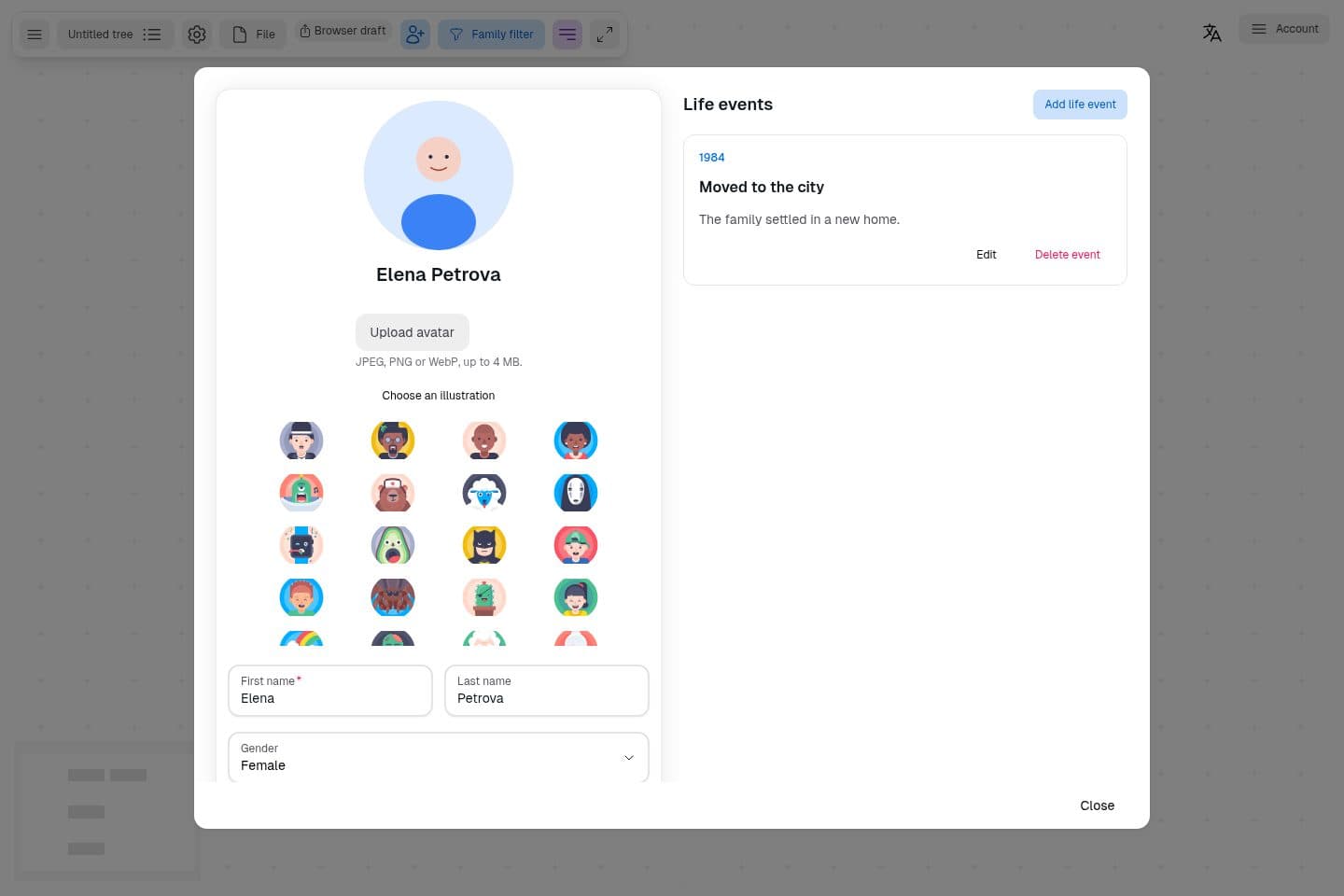
The pencil opens one person: name, dates, photos, and life events.
Upload a JPEG, PNG, or WebP photo up to 4 MB, or choose an illustration. A photo can become the picture on the card. A life event has a title, a description, and a date: a full date, a month and a year, or a year alone. Birth and death dates from the card also appear in the list.
Keep your tree
Edits are autosaved in this browser. A file on your device, or an account, is what lets you open the same tree somewhere else.
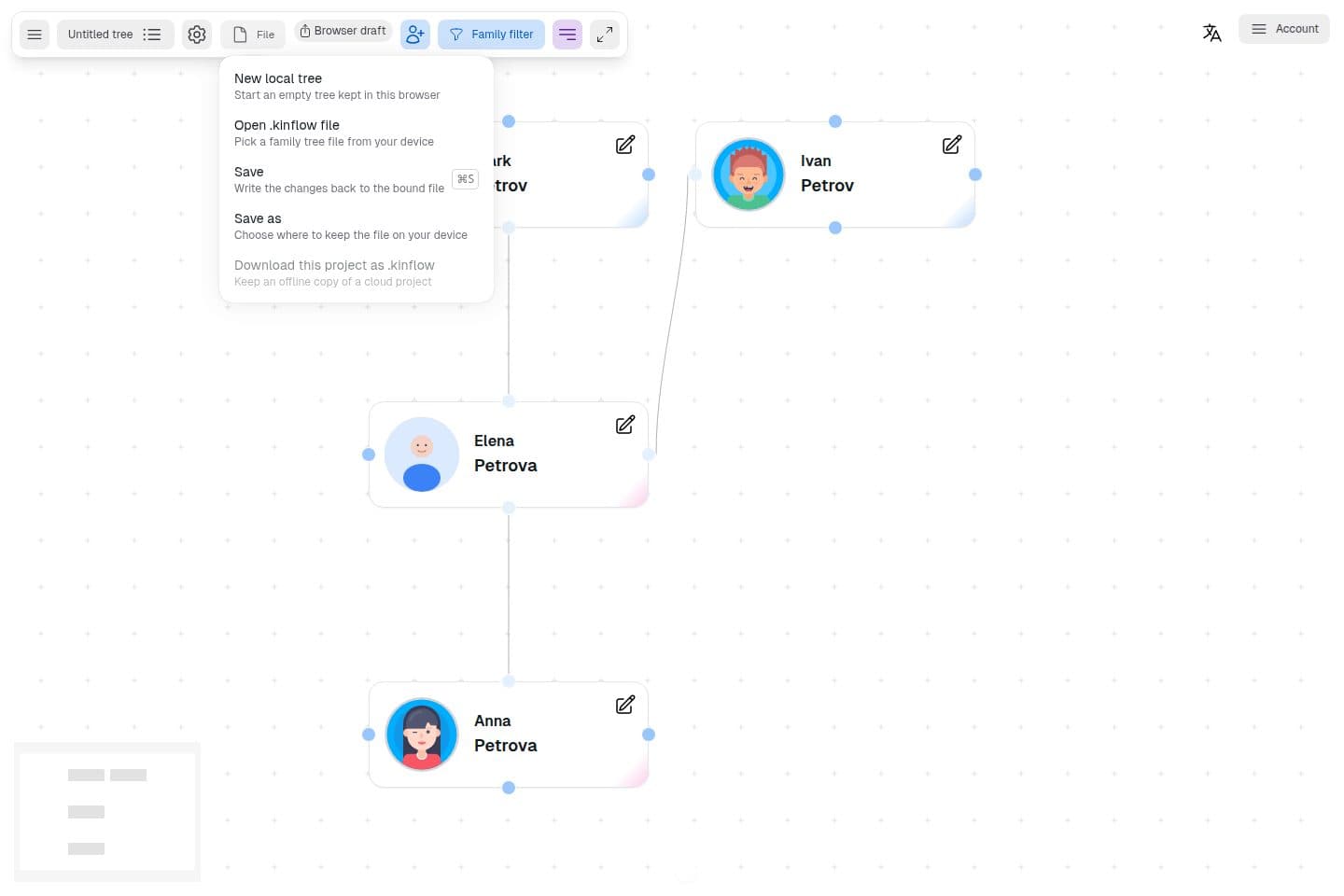
Open File. Save writes changes back to a .kinflow file the tree is already tied to. Save as stores a file on your device. Browsers that cannot pick a folder offer Download a copy instead. Open .kinflow file brings a tree back. New local tree starts another empty tree in this browser. Download this project as .kinflow is for a tree stored in an account, so it stays unavailable on a local tree. If you leave with changes that are not in a file yet, Kin Flow asks you to save them or discard them.
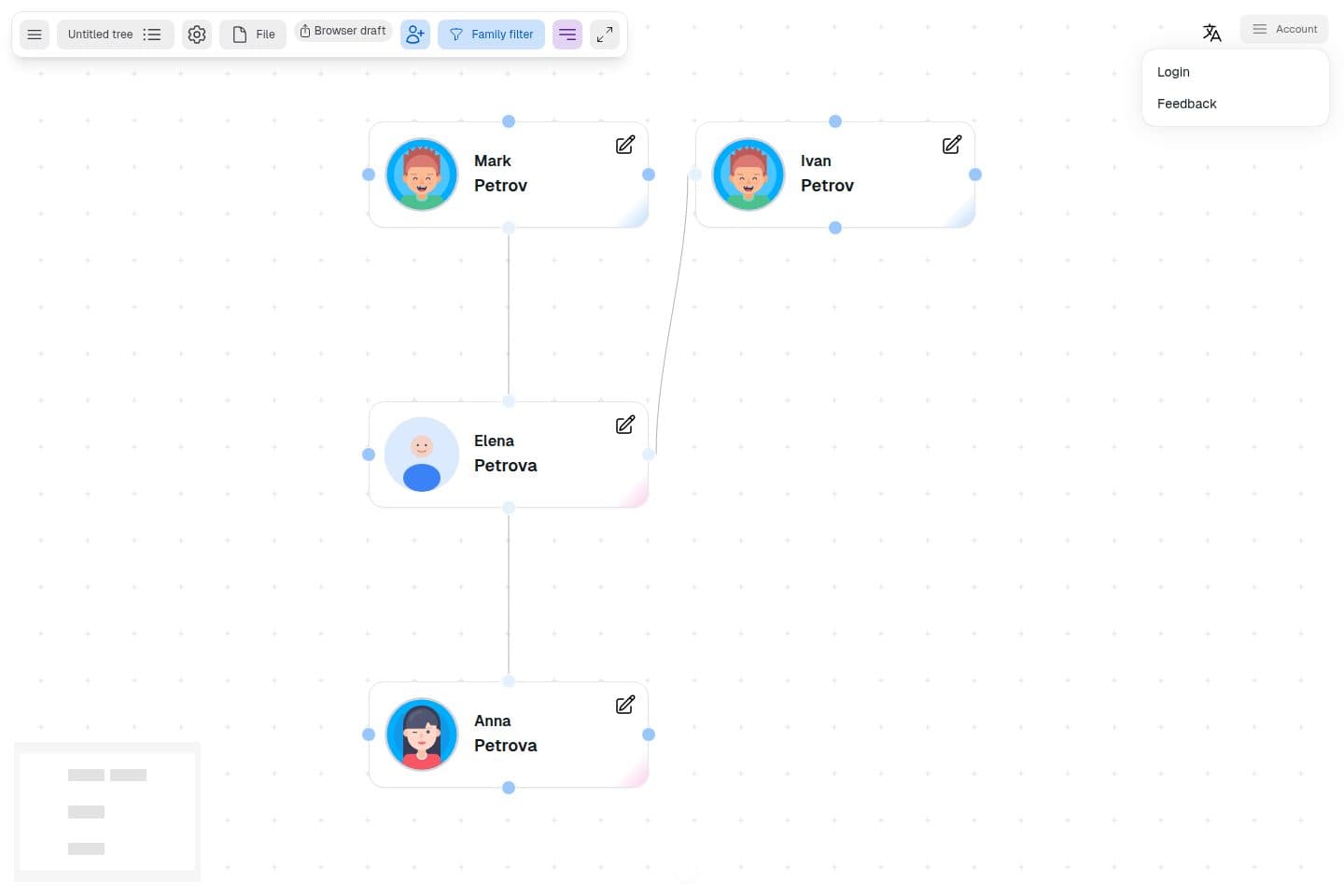
Open Account and choose Login when you want the tree in your Kin Flow account. After you sign in, Save to cloud appears on the toolbar and keeps that tree with the account, so you can open it on another device. To share a local tree, send the .kinflow file. Invites need a cloud copy.
Privacy and data
See the Privacy Policy, Cookie Policy, and Terms of Use.
Feedback
Use Feedback in the menu, or the same form on the site footer, to tell us what is confusing or missing.